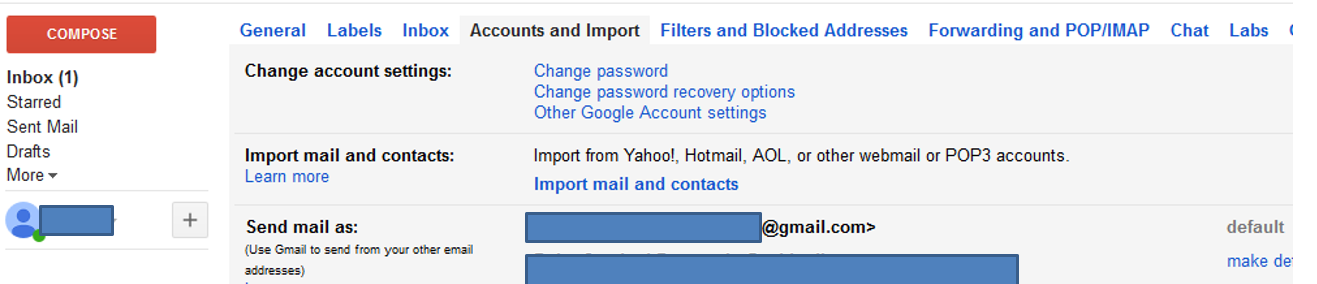
To use gmail as your outgoing mail client in EQ, the following steps are required.
1. Log into your gmail account, and go to the My Account section
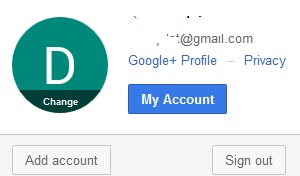
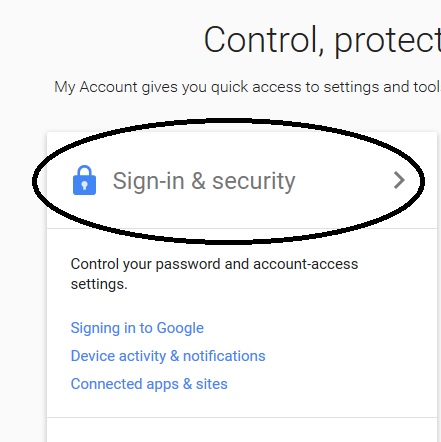
2. Click on the Sign-in & Security settings
3. Scroll to the bottom and turn on Less Secure Apps
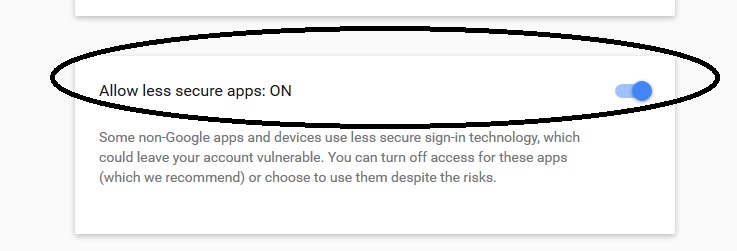
These settings may take some time to take affect.
4. Open the eq.exe.config file
5. Edit the mail section to match the following and enter your user ID and password
<add key="SMTPServer" value="smtp.gmail.com" />
<add key="SMTPPort" value="587" />
<add key="SMTPUID" value="username@gmail.com" />
<add key="SMTPPWD" value="mypassword"/>
<add key="SMTPUseSSL" value="True"/>
6. Save the file and restart EQ
To show the user's email account rather than the gmail account, go to gmail setup, and Accounts and Imports.
Add each user's email address.
An email will be sent to the user confirming that they own the email and are happy for gmail to use that email as the 'From' email account